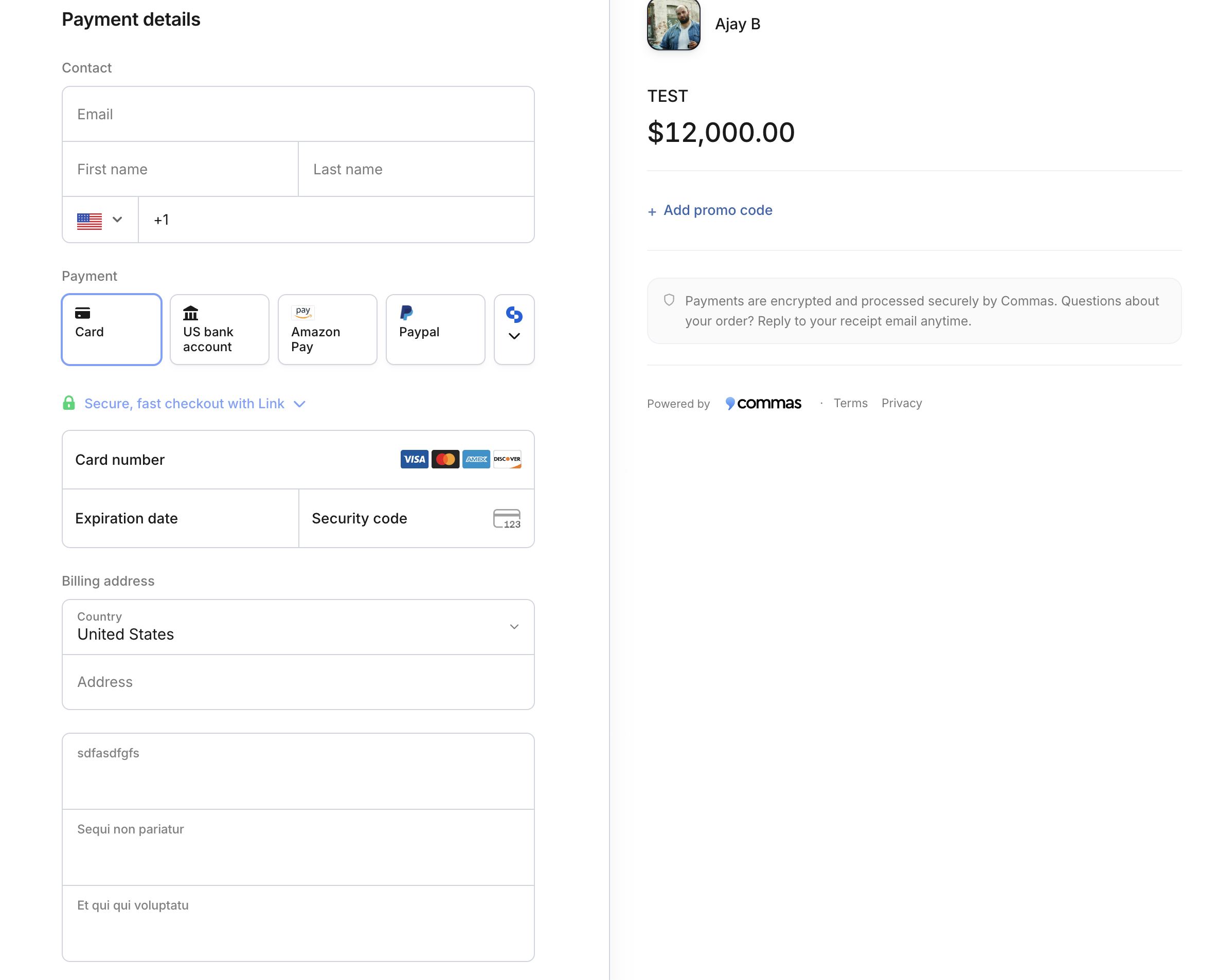
How to create a Product (Payment Link)
Last updated: August 28, 2026
Creating a payment link on Commas is quick and simple. Whether you're selling a one-time product or a subscription service, follow the steps below to generate a custom payment link you can share with your customers or embed in your storefront.
1. Log In to Your Commas Dashboard
Navigate to commas.com and sign in with your account credentials.
2. Go to the Products Tab
From the left-hand navigation panel, click on Payments then Product Catalog.

3. Click + Add Product, then select One time.
This will allow you to generate a unique payment link tailored to your product or service.
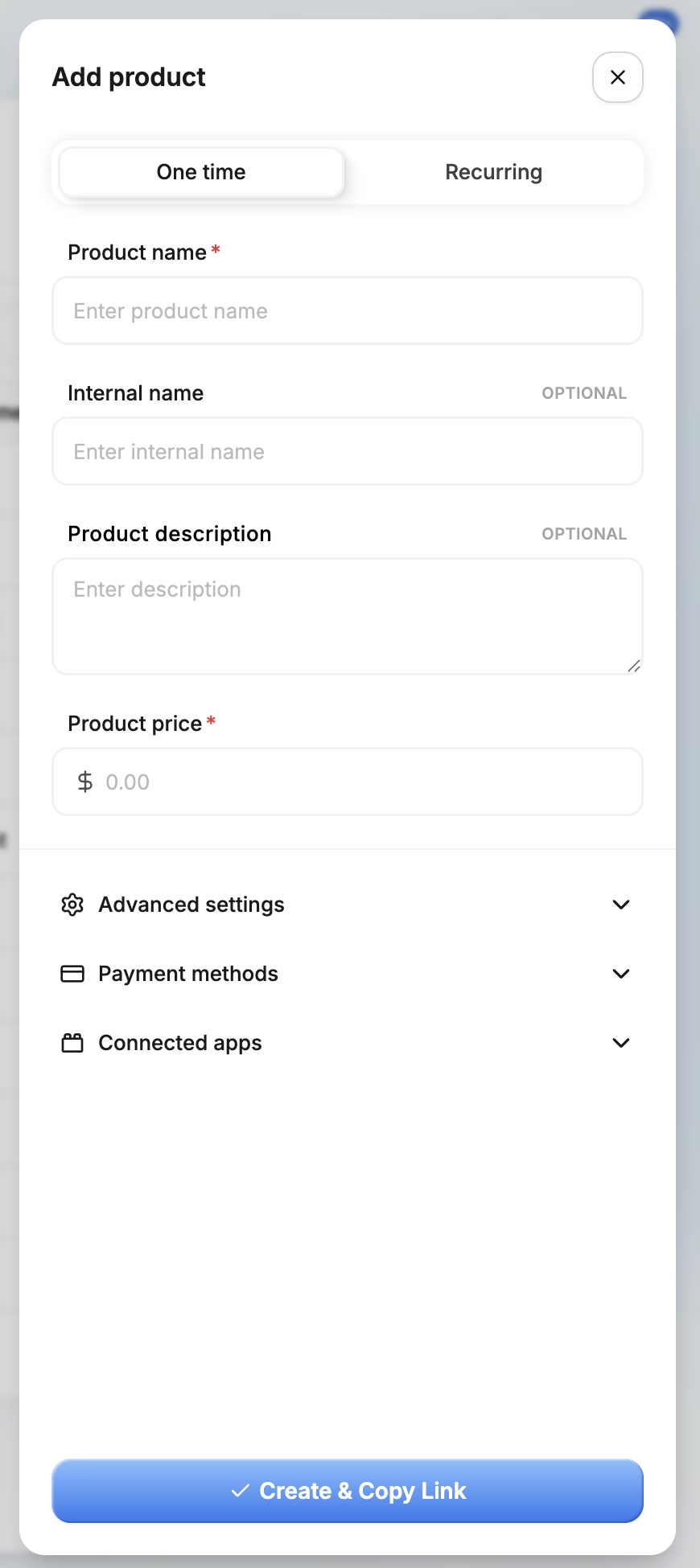
4. Fill in Product Details
Complete the form with:
Product Name – The name of your product or service
Description – Brief details about what you’re offering
Price – Set the amount customers will pay
5. Click Create & Copy Link
Once you’ve filled in the details, click the Create & Copy button to generate your payment link.
6. Share Your Link
If you need to copy the link again, hover the link icon next to your new product to copy the payment link.
You can now:
Send the link directly to your customers
Embed it on your website or storefront

🔍 Testing the Link (Recommended)
If you’re currently logged in to Commas, open an Incognito Window or log out to test the customer experience.
This ensures you're seeing exactly what your buyers will see.
Need to send an invoice?
Invoicing option: If you prefer to invoice your customer instead of sending a payment link, check out our Invoicing Feature Guide for steps on how to set up invoicing for your customer.
You can also create an invoice after you’ve already charged the customer and mark that invoice as paid, so your records stay organized.

Suggestion
For subscriptions, clearly outline what customers will receive and how often they’ll be billed.
+ The plus button will always be present in your dashboard as well as an alternate method to create a product.
How do I set up a payment plan?
Once your payment link is created, your customer will have the option to select the buy now pay later option (like Clarity Pay, Zip, Sezzle) at checkout. Your account must be approved and in good-standing in order for the payment links to work.